

The complete guide
How to Choose a 4K Streaming Webcam That Actually Looks Good
The problem with the camera you already own
Almost every laptop has a camera in the lid, and almost every one of them is disappointing. The reason is physical. A laptop lid is a few millimetres thick, so the camera module has to be tiny, which means the sensor is tiny, which means very little light reaches it. The software then tries to rescue a dark, noisy image by brightening it, and what you get is a soft, grainy picture with strange colour.
You notice it most in two situations. One is a video call where someone shares a grid of faces and yours is clearly the blurry one. The other is a stream or a recording where your face is the main thing on screen for twenty minutes straight. Audio has the same problem. Laptop mics sit near the fans and the keyboard, so they pick up both.
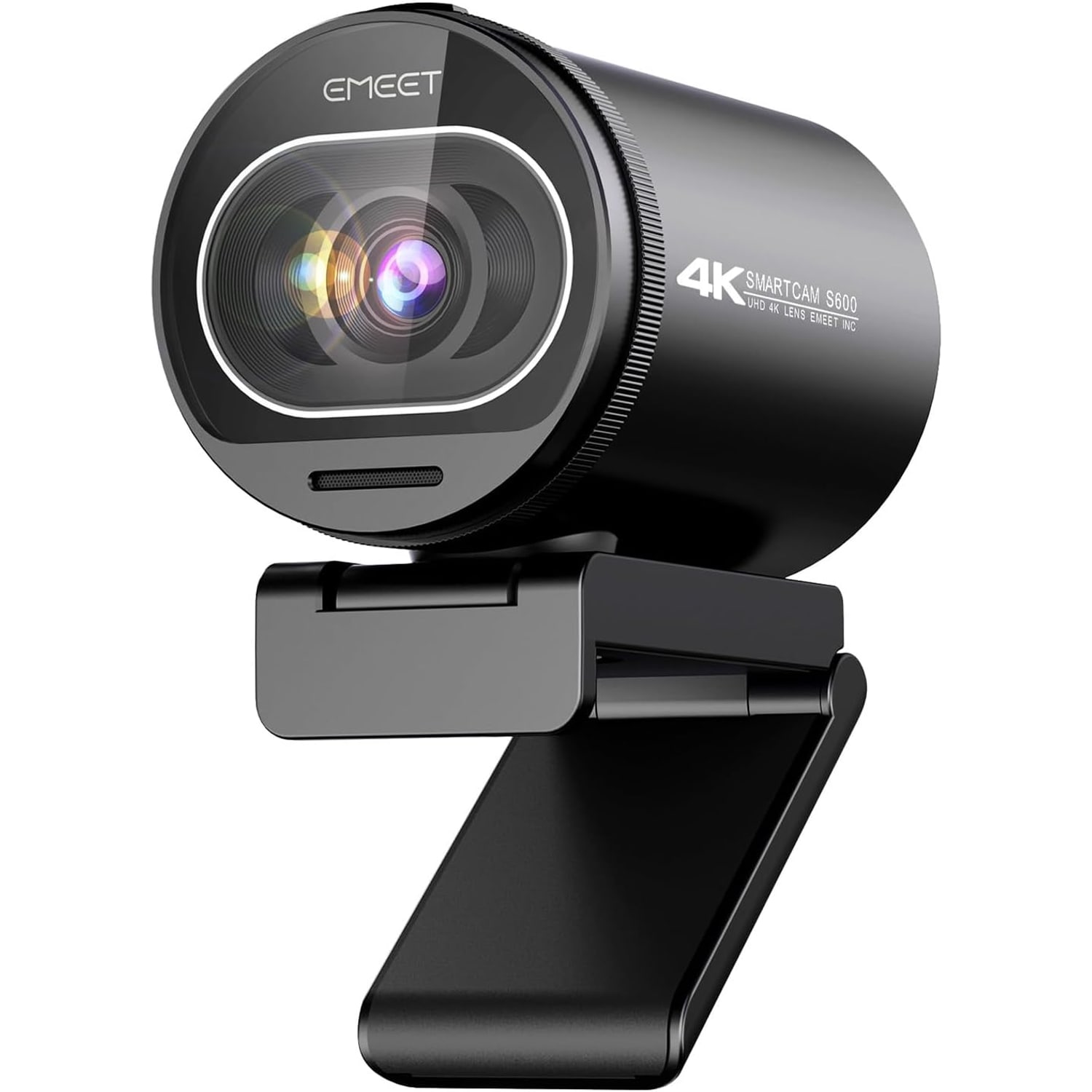
A dedicated webcam solves this by giving the sensor room to breathe. This webcam uses a 1/2.55 inch CMOS sensor, which is a different class of part from the pinhole in a laptop lid. More light in, more detail out, less of that mushy smoothing.
What 4K actually gets you
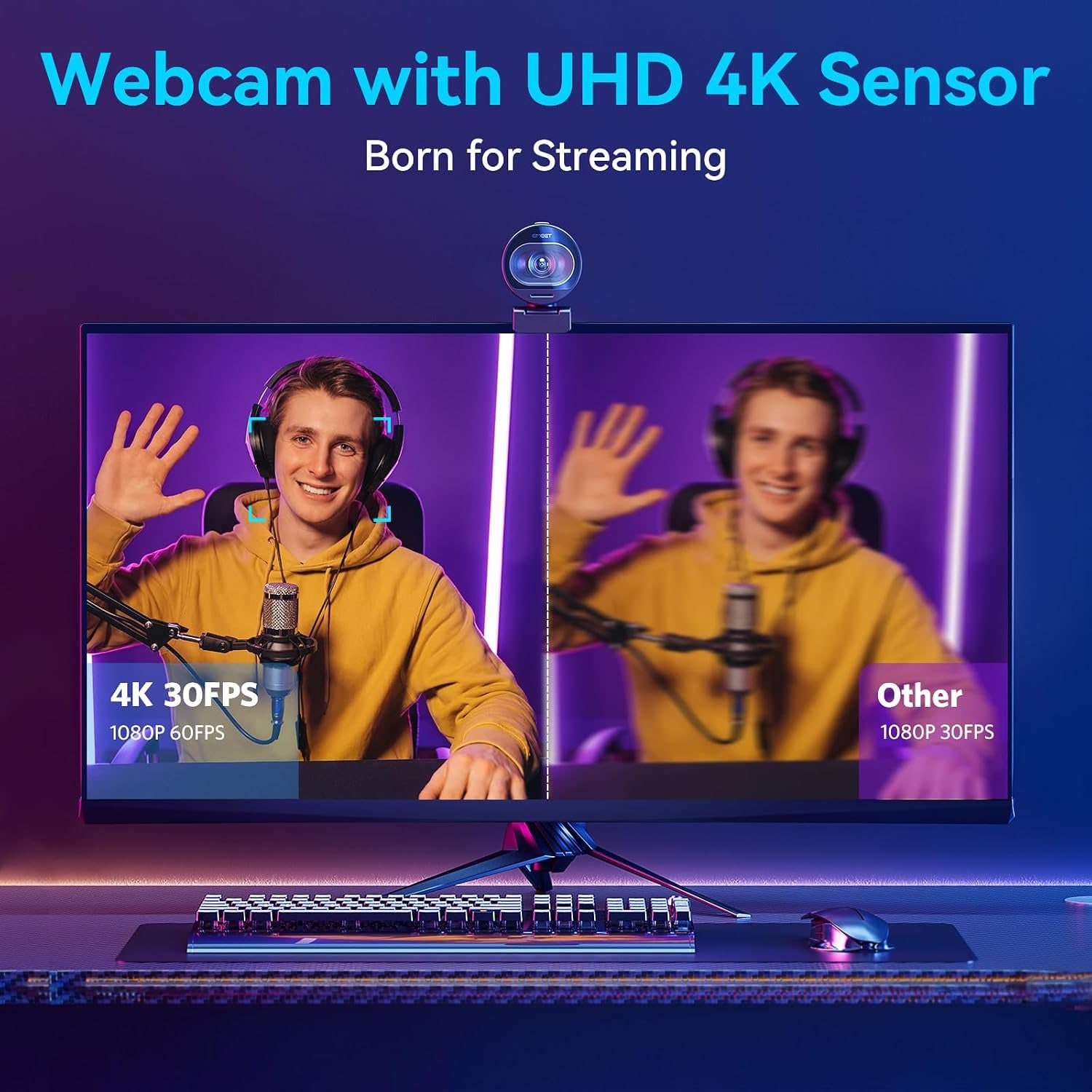
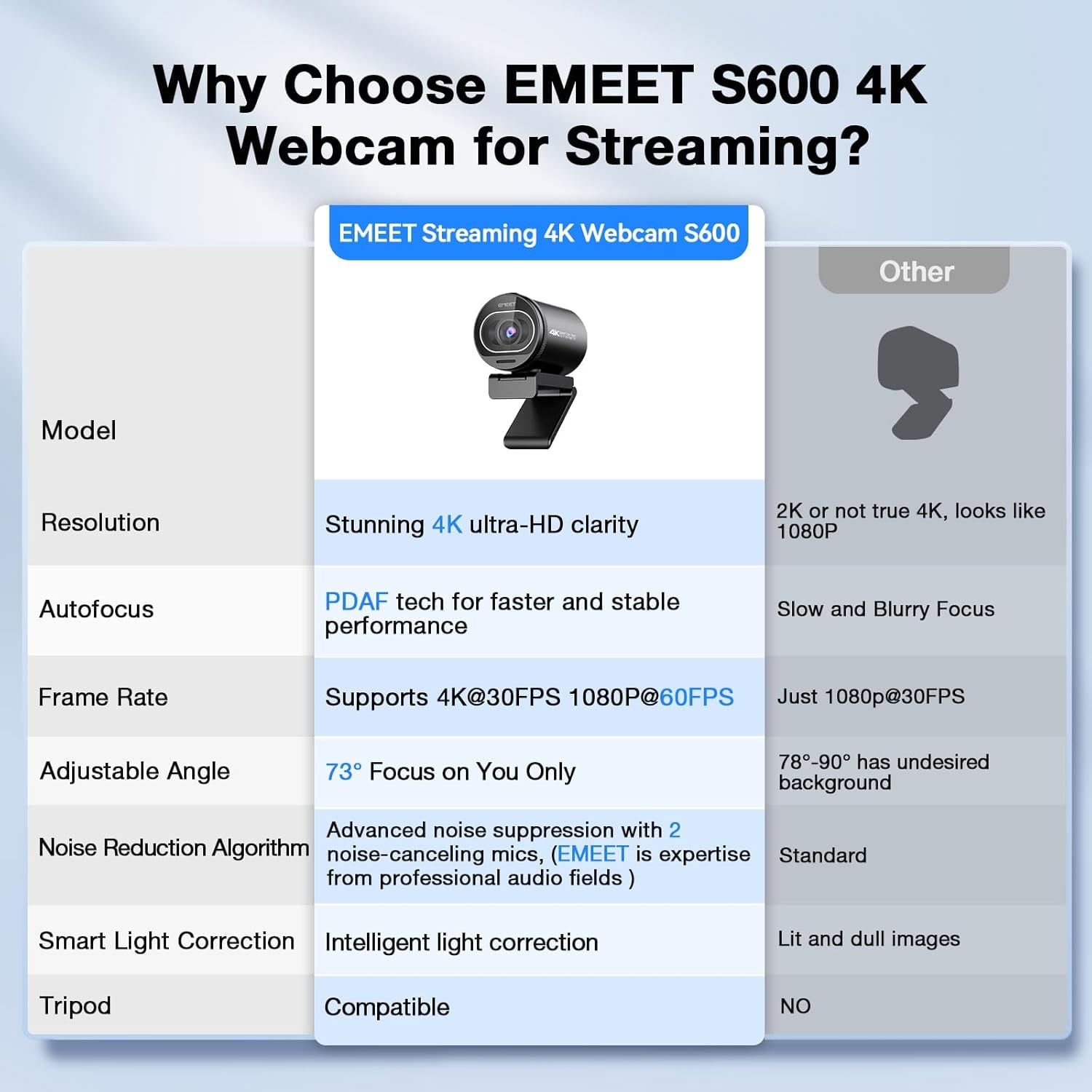
True 4K means 3840 x 2160 pixels, and this webcam captures at that resolution and 30 frames per second. Here is the honest part: most streaming platforms will not deliver 4K to your viewers. Twitch tops out well below it, and even on YouTube plenty of people watch on a phone.
So why bother? Three reasons. First, a 4K capture downscaled to 1080P looks cleaner than a native 1080P capture, because the extra pixels get averaged into better ones. Second, digital zoom and cropping cost you less. This webcam has 2.1x digital zoom, and starting from 4K means you still have real detail left after you crop in. Third, recorded content lives longer than live content. If you are making tutorials or course videos, having the 4K master is worth something later.
The alternative mode is 1080P at 60FPS. Frame rate changes how motion feels. At 30FPS a fast head turn or a quick hand gesture smears slightly. At 60FPS it stays crisp. For live streaming, especially gaming, that smoothness usually matters more than pixel count. The useful thing is that you are not locked in. Record in 4K, go live in 1080P 60.
Why focus is the feature people underestimate
Resolution gets all the attention in webcam marketing, but focus is what ruins more video than anything else. Basic autofocus works by moving the lens a little, checking whether the image got sharper, and repeating. That trial-and-error shows up on camera as a soft pulse every time you move, and once you notice it you cannot unsee it.
Phase detection autofocus works differently. It reads how far off focus the image is and in which direction, then moves straight there. That is the PDAF in this webcam's spec sheet. It means fewer visible hunting moments when you lean forward to type, sit back, or hold something up.
The focus range runs from 10 cm at the close end to 3 m at the far end. Ten centimetres is close enough to show the texture on a product, a book page or a circuit board. Three metres covers you if you step back from the desk or want a chair in frame.
If you only compare one thing when shopping for a 4k webcam for streaming, compare focus behaviour rather than resolution numbers. Resolution is easy to put on a box. Focus is where cheap cameras cut corners.
Audio, and when the built-in mics are enough
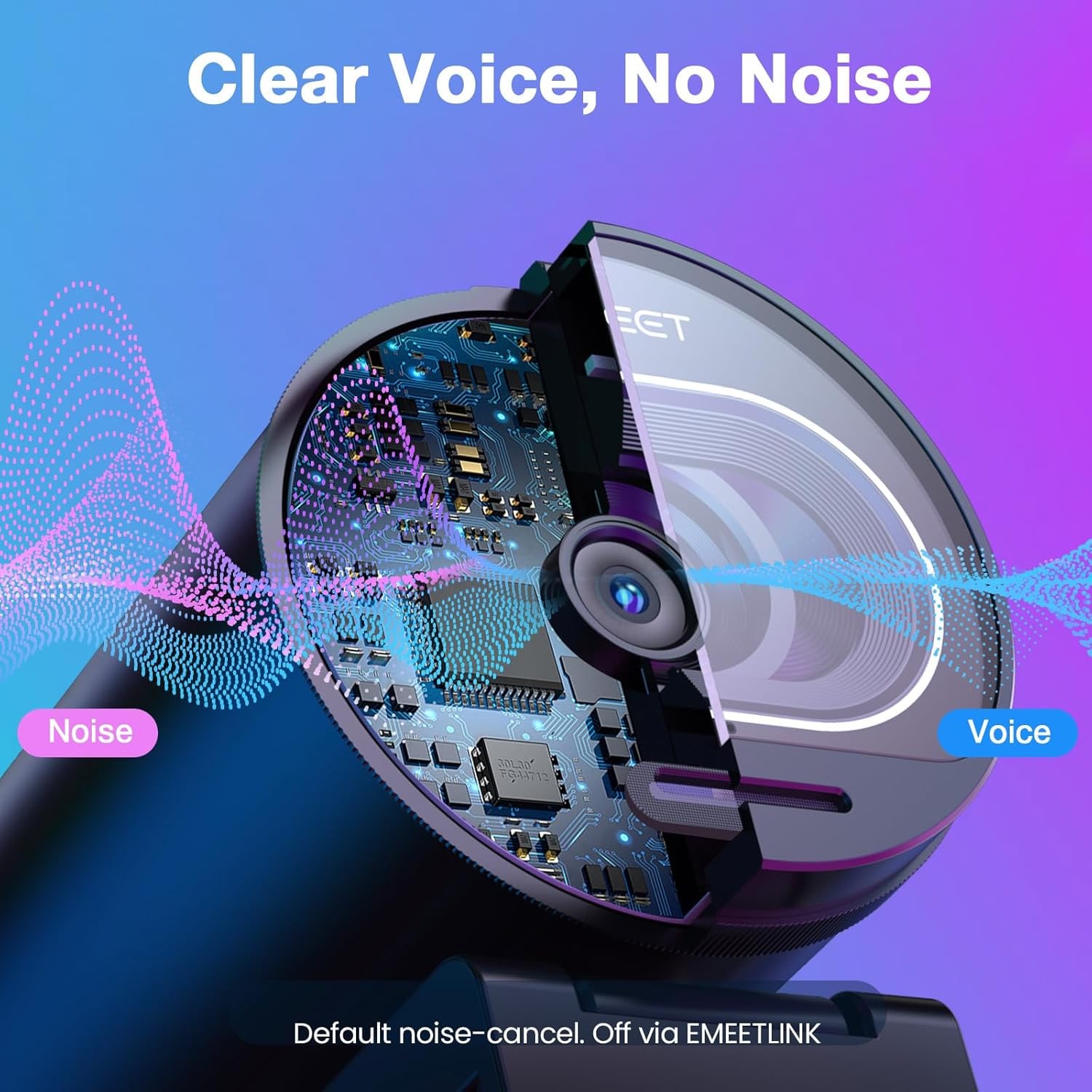
This webcam has two microphones with a noise-cancelling algorithm that tries to separate voice from background hum. For meetings, classes, family calls and casual streams, that is usually enough.
Where webcam mics hit their limit is distance and room. Any mic a couple of feet from your mouth picks up some of the room with you, and noise cancelling fixes hum better than it fixes echo. If you work in a room with hard floors and bare walls, a rug and a bookshelf will improve your audio more than any setting.
The noise cancelling is on out of the box and can be switched off in the companion software. Turning it off makes sense if you route audio through OBS or similar and prefer your own processing chain, because stacking two noise reduction systems can leave voices sounding thin.
Field of view, and why wider is not always better
This webcam sees 73 degrees. That is wide enough to include your shoulders and a bit of what is behind you, without the stretched, fish-eye look that very wide webcams produce at the edges.
At 1080P the maker says the field of view adjusts between 40 and 73 degrees. A tighter crop is useful in two cases. If your background is messy, less of it shows. And if you are the only thing on screen, filling more of the frame with your face reads better to viewers than sitting small in the middle of a room.
Most people land somewhere between the two and leave it there. It is worth spending ten minutes on the first day testing angles rather than discovering six streams in that your ceiling fan is the star of the show.
Setting it up without a headache
Plug the included 4.92 ft USB-C to USB-A cable into a free port and the camera is ready to use. No extra software is required. The maker names Windows 10 and 11, Linux, and Android TV 7.0 and above. The maker specifically flags Chrome OS as not recommended, because compatibility varies by version and device.
A couple of practical notes. Use a USB 3.0 port if you have one. The maker describes this as a USB 2.0 and 3.0 webcam. And if your tower sits on the floor, measure before ordering, since five feet of cable disappears fast behind a desk.
Position matters as much as spec. Put the camera at or just above eye level so you are not filming up your own nose. The clip design rotates and tilts, which gives you room to adjust without stacking books under it.
Lighting beats every setting
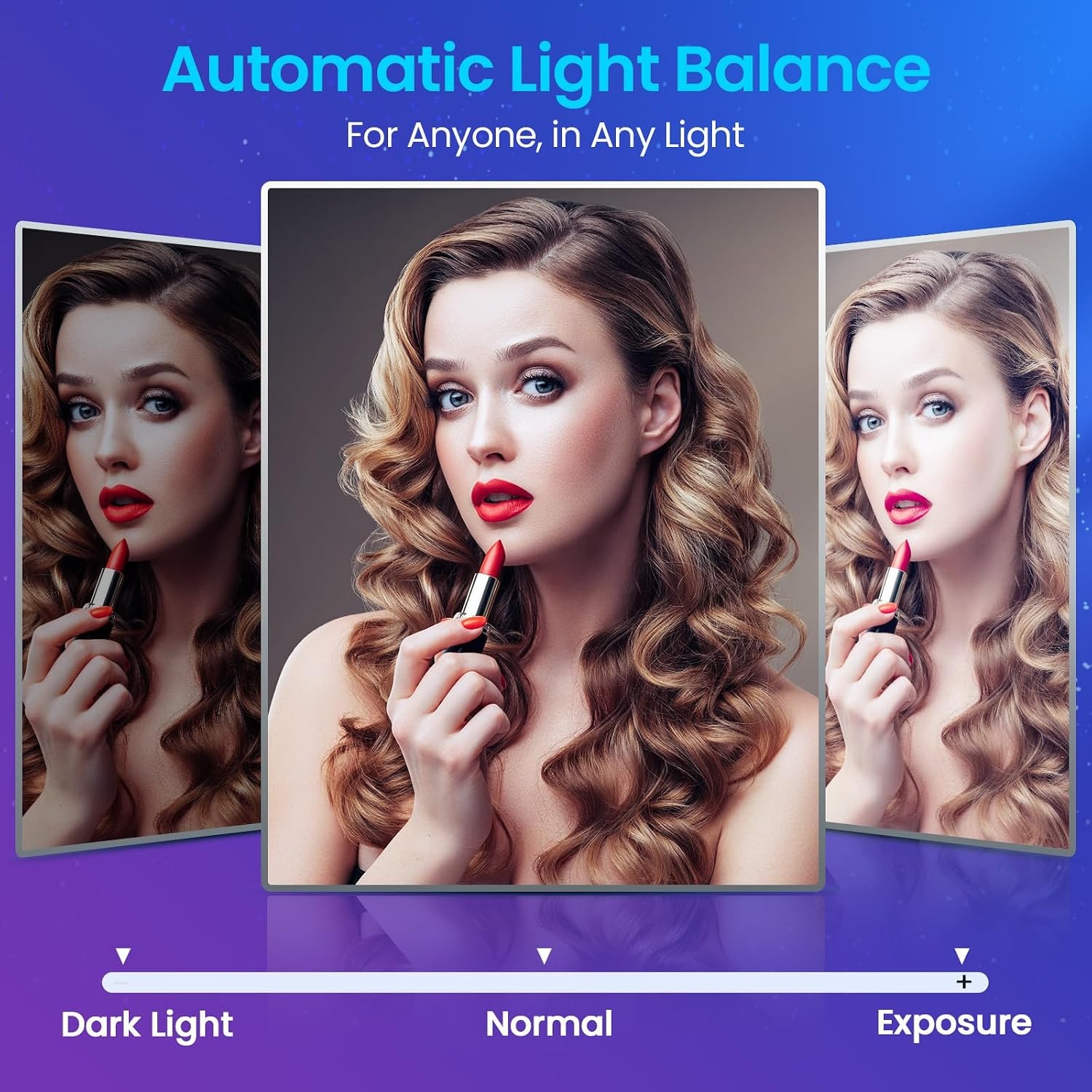
No webcam creates light. This webcam has a usable aperture range of f/2 to f/4 and runs exposure and white balance automatically, so it handles ordinary room light reasonably. But the single cheapest upgrade to your video is a lamp in front of your face rather than behind it.
Window light works if the window is in front of you. If it is behind you, the camera exposes for the bright window and leaves you as a silhouette. Swap the desk around or close the blind. A small, soft light off to one side is better than a harsh one straight on, because it gives your face some shape instead of flattening it.
Keeping it in good shape
Use a dry microfiber cloth on the lens, nothing wet. No alcohol wipes, no spray cleaner, no paper towel. The built-in privacy cover is the simplest dust protection you have, so get into the habit of turning it shut when you finish work. It also removes the question of whether the camera is on, which is why so many buyers now treat a cover as a requirement rather than a bonus.
The camera is not water resistant, so keep drinks a safe distance from it. Unplug by the connector, not the cable.
The short version
If your laptop camera is letting you down, this fixes it without a camera, a dummy battery and a capture card. You get true 4K at 30FPS for recording, 1080P at 60FPS for smooth live video, phase detection autofocus that holds steady while you move, two noise-cancelling mics that cover everyday calls, and a privacy cover that is part of the camera rather than a sticker.
It is small, it weighs 3.52 oz, it runs plug and play on Windows, Linux and Android TV, and the optional software is there if you want to fine-tune the picture or the field of view. Add a lamp in front of your face and you will look better than most people on the call.